Amazon white backgrounds: prepare an image true to your product
How to review background removal, preserve detail and distinguish useful editing from a misleading product representation.
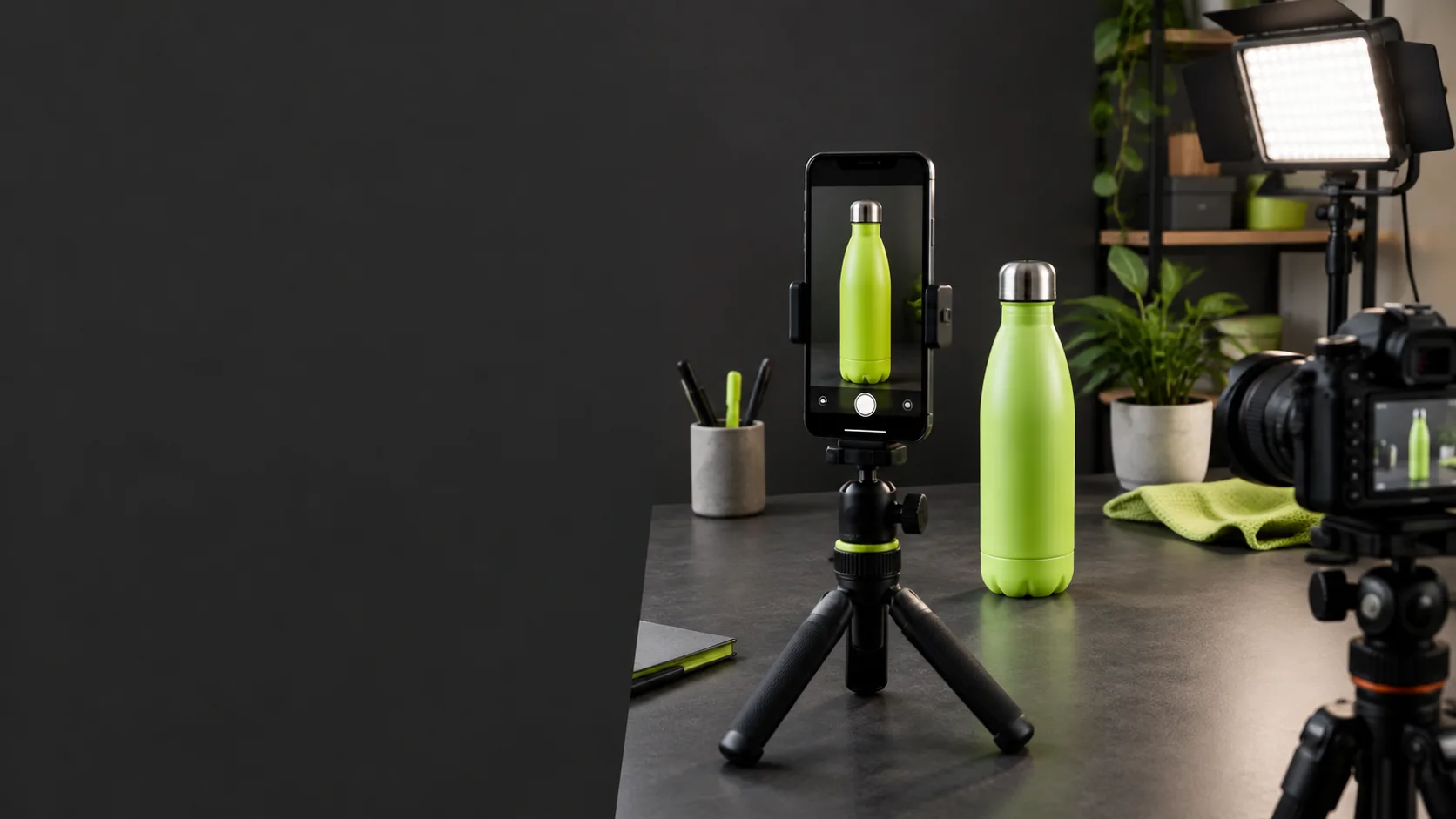
Start with a suitable photograph
A white background does not fix a photograph that already misrepresents the product. Start with an authorized, focused image and enough light to distinguish its edges. Check that the product is complete, visible accessories match what is sold and lighting does not distort its color. Always keep an original copy before editing.
If you are taking the photograph, separate the product from its surroundings and avoid surfaces that blend into its materials. Transparent or shiny objects and very fine parts need special attention. A carefully taken image usually needs fewer corrections than a difficult photograph. The aim is not to isolate any silhouette but to show clearly what the customer will receive.
Understand background removal
The tool identifies an area to preserve and another to remove. That separation may fail around delicate edges, holes, reflections or surfaces resembling the background. After applying the process, inspect the outline at a size that reveals missing parts or remaining background. Do not publish simply because the overall view looks correct on a small screen.
Check shadows and contact with the surface too. Removing every spatial cue can make an object appear to float or lose volume. For some uses a uniform background helps people compare products, but editing should retain the authentic shape. If the result cuts off a part or changes its appearance, return to the original and prepare a better photograph rather than accepting the error.
Review whiteness and file fidelity
When preparing a white background, distinguish the surroundings from pale product materials. Do not accidentally whiten labels, fabrics or translucent parts. Inspect packaging text and small details after exporting. Avoid compression that makes information illegible or creates artificial edges. Keep labeled versions so the original and final edit are not confused.
Basic enlargement can change pixel dimensions but does not reconstruct genuine detail. Do not use it to claim quality that the starting photograph lacks. If a texture or component needs to be shown precisely, take a new photograph. Do not change proportions, colors or accessories to meet framing requirements at the expense of describing a different product.
Prepare the edit in Extracta
In the tools area, upload an image you own or are authorized to use and apply a white background. Inspect the preview before downloading the result. Image editing and enlargement have the per-action cost shown in the app and pricing. Media recovered from Amazon needs the same rights and quality checks as any file; its source does not guarantee permission to reuse it.
Image tools load when you work with them, and the first operation may take additional time. Automatic removal does not replace manual review of each product. Retain original files, avoid repeating actions without checking the result and consider a photography session if segmentation does not preserve the edges. The technical process prepares an image; it does not certify Amazon will accept it.
Check the rules before publishing
Review Amazon’s current official image requirements for your destination category and market. Requirements for a primary image and secondary images are not always the same. Check permitted elements, how the product should be shown and whether the prepared background fits that use. Do not assume a uniform edit meets every condition.
Use contextual images where allowed to explain use and scale rather than replacing relevant information with decoration. Coordinate the media kit with your listing so color, quantity and accessories do not conflict. Start free in Extracta and evaluate the workflow with your own files. Editorial and rights responsibility remains with the user even when the background is removed automatically.
Frequently asked questions
Does a white background guarantee Amazon acceptance?
No. Review current category rules and every exported image.
Does enlarging 2x add genuine detail?
No. It is basic enlargement that interpolates pixels.
Prepare references and your own media
Start with available tools. Automatic analysis and scripts: coming soon.